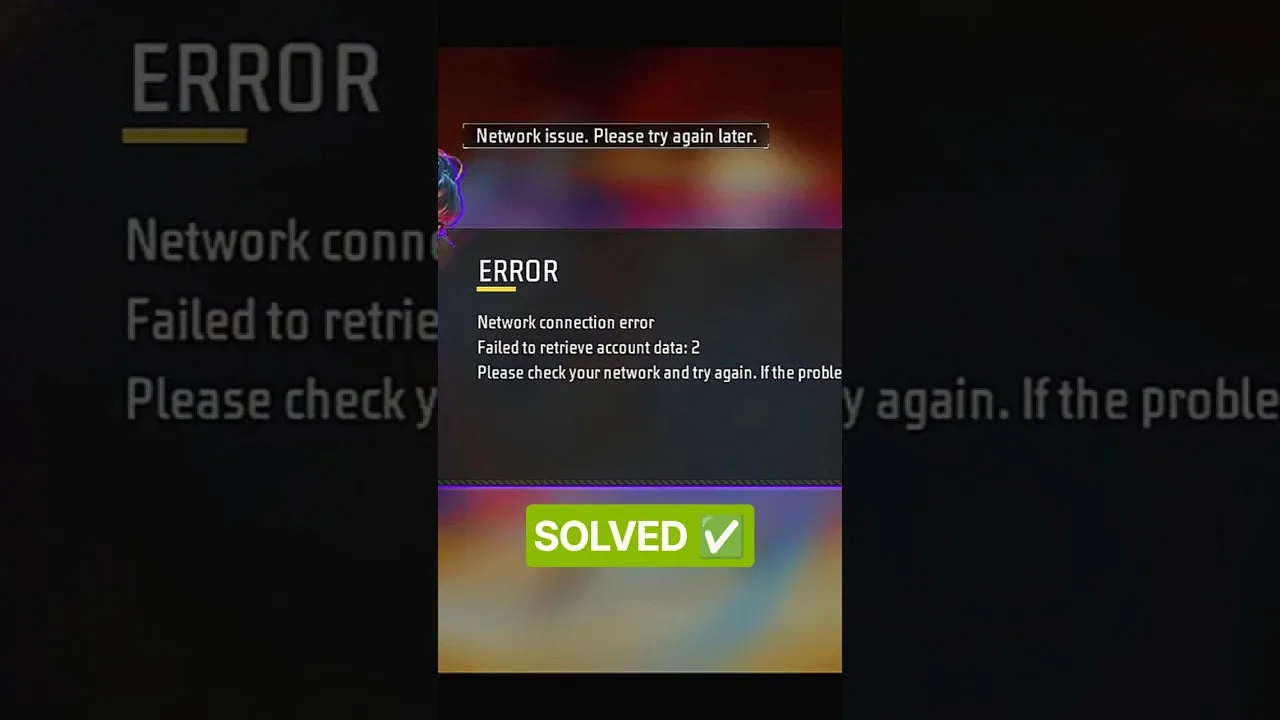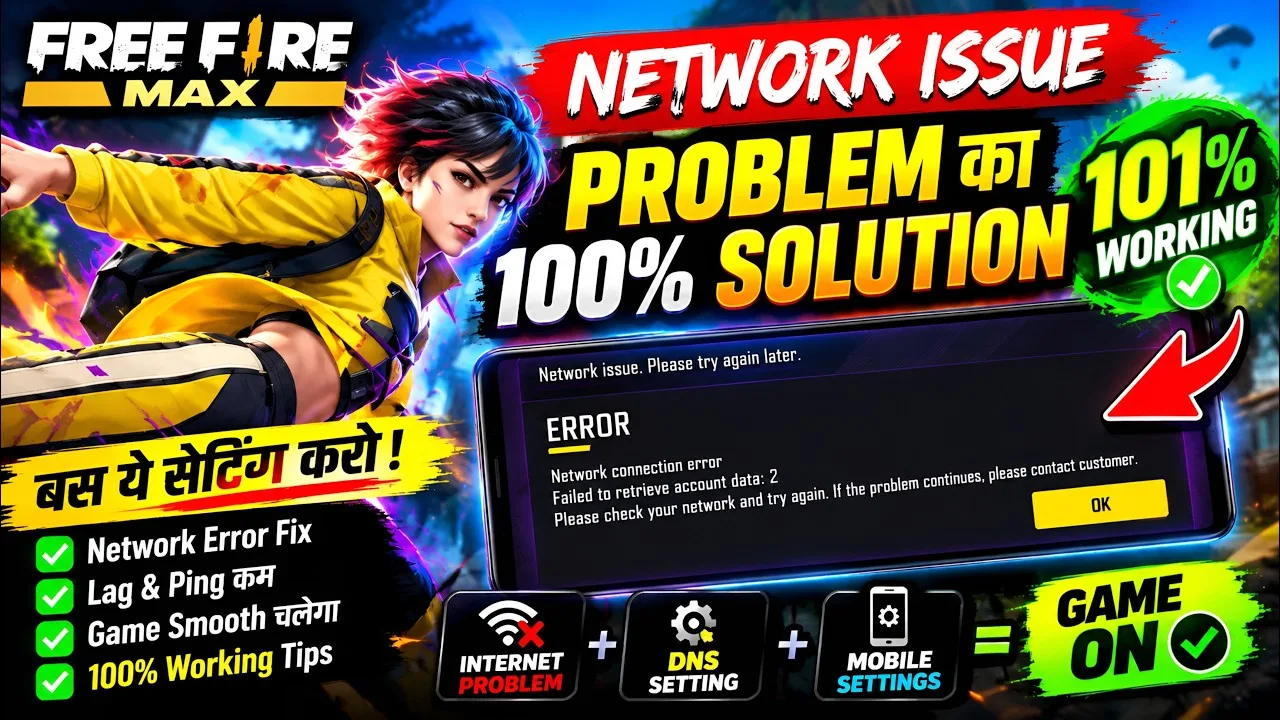
A beta error is a fault that appears in a test build or while using a beta access tool, ranging from a download that never finishes to a build that opens and closes immediately. Most beta errors look dramatic but have ordinary causes: files, storage, permissions, cache, or a test server doing exactly what test servers do.
When Unlock Beta FF latest app shows an error, the worst response is random reinstalling. The best response is to identify which family the error belongs to, apply that family's first fix, and test once. This guide groups the common beta errors that way, so you spend minutes fixing instead of an evening guessing.
Download and Install Errors
A download that stalls, restarts, or finishes at the wrong size points to connection or storage trouble, not the app itself. Switch to a stable connection, confirm enough free space for the file and its installation, and download once more from the beginning rather than resuming a damaged partial file repeatedly.
Install messages about parsing or conflicting packages usually mean a partial file or an older copy interfering. Delete old APK copies, restart the phone to clear installer state, and install the single fresh file. If the general fixes in Unlock Beta FF not working common problems and fixes sound familiar here, that is because install errors behave the same in beta and regular builds.
Loading Screens That Never Finish
A build that sits on a loading screen is often waiting on something: a server response, a permission, or cached data from an earlier build that no longer matches. Check your connection first, then force stop the app and clear its cache, which removes temporary data without deleting your account or settings choices.
If loading stalls at the same point after a cache clear, consider the test window itself. Beta servers pause for maintenance and capacity limits without much notice. Waiting an hour and trying again fixes more loading screens than any setting change, and it avoids destroying a working setup while chasing a server-side pause.
Crashes and Sudden Closures
A crash on launch often follows an update, when old temporary data meets a new build. Clearing cache is the first step; clearing storage is the heavier step that resets the app fully and should come later, after you note any settings you want to restore. A crash that happens only in one mode or one menu is more likely a genuine test build fault.
Heat and low memory cause closures that look like app bugs. Close background apps, let a hot phone cool, and test again in a short session. If the crash survives a cool phone, a cleared cache, and free storage, record the exact moment it happens. Precise reports separate real build faults from device strain, and they are what test builds exist to collect.
Update Loops and Version Mismatch Messages
Being told to update an app you just updated usually means two copies or two sources are involved, or the server expects a build number your file does not carry. Confirm the version label inside the app, remove stray older copies, and make sure you installed the newest file rather than an earlier download with a similar name.
Login-related update prompts are a separate family and are covered in Unlock Beta FF login and server region issues, because region and account states can produce update and access messages that have nothing to do with the file on your phone. Separating file problems from account problems is the single biggest time saver in beta troubleshooting.
Know When the Error Is Not Yours
Some beta errors belong entirely to the test programme: closed windows, full servers, paused regions, and features withdrawn mid-test. No setting on your phone fixes those, and recognising them quickly protects your setup from unnecessary changes. If fellow testers would see the same message at the same moment, the cause is shared, not personal.
Keep a short error diary while you test: the message, the time, your build, and what you changed. Patterns appear quickly in a diary and stay invisible in memory. With that record, most beta errors resolve into one of the families above, and the few that do not become clear, useful reports instead of frustrating mysteries.
After the Fix, Test Properly
A fix is not finished when the error message disappears; it is finished when the app survives a proper test. After any repair, open the app fully, visit the screen where the error appeared, repeat the action that triggered it, and play a short session before declaring success. Many beta faults return under real load after looking cured in a menu, and catching that return immediately tells you the first fix treated a symptom rather than the cause, which changes what you should try next.
Change only one thing between tests. Players who clear cache, reinstall, switch networks, and change settings in a single desperate burst sometimes fix their problem without learning anything, and the same error next week finds them helpless again. Players who fix methodically build a personal playbook: this message means that cause, and this step resolves it. That playbook, written down, is worth more than any single repair, because beta windows guarantee the errors will visit again in some new costume.
Share what you learn with other testers when you can. A fix posted in plain language, with the exact message and the step that resolved it, saves strangers the evening you just spent. Beta communities run on that exchange, and the player who documents solutions becomes the player others trust when a new window opens with new problems. Your error diary, written for yourself, becomes a public asset with almost no extra effort, and it sharpens your own understanding every time you explain a repair clearly.